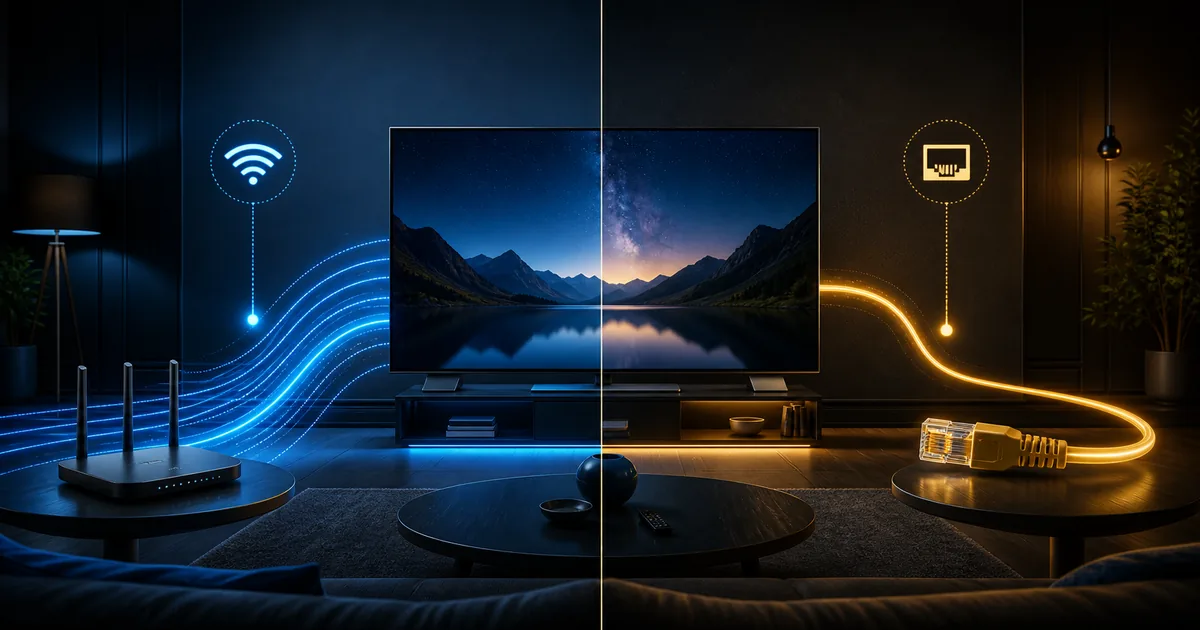
Wi-Fi and Ethernet can both deliver a good television experience. Ethernet provides a direct cable path that is usually less affected by radio interference. Wi-Fi avoids a cable and offers flexibility, but its performance changes with distance, walls, nearby networks and device placement.
The right choice is the connection that remains stable at the television while the household uses the network normally. A headline speed measured beside the router is not enough to decide.
The core difference is consistency versus flexibility
Ethernet sends data through a cable between the router or network switch and the viewing device. This usually gives predictable latency and avoids competition in the wireless radio space. It is useful for live sports and higher-quality playback where short wireless drops can be visible.
Wi-Fi sends data by radio. It makes installation much easier when the router is in another room and lets devices move. A strong, clean Wi-Fi link can deliver more than enough capacity. Problems appear when the signal is weak or busy, not simply because the connection is wireless.
| Factor | Wi-Fi | Ethernet |
|---|---|---|
| Installation | No data cable; easy in most rooms. | Needs a safe cable route and available ports. |
| Stability | Varies with range, walls and interference. | Usually consistent when the cable and ports are sound. |
| Speed | Can be high near a suitable router; real speed changes by location. | Limited by the slowest port, cable and router link. |
| Latency | Can vary when the radio channel is congested. | Typically low and repeatable on the local network. |
| Mobility | Excellent for phones, tablets and portable devices. | Best for a fixed television or box. |
| Troubleshooting value | Reveals real wireless conditions. | Useful comparison that removes wireless variables. |
Ethernet is not automatically fast. Some television ports operate at a lower maximum than modern Wi-Fi. That may still be enough for streaming and can remain more stable. Choose using sustained playback, not specifications alone.
Understand the connection options
2.4 GHz Wi-Fi
The 2.4 GHz band generally reaches farther and passes through walls better. It is also used by many household and neighboring devices, so interference can be higher. Use it when the television is far from the router and the 5 GHz signal becomes weak.
5 GHz Wi-Fi
The 5 GHz band usually offers more capacity and cleaner channels at shorter range. It weakens more through walls. It can be the best option for a television in the same room or one room away, provided the signal stays strong.
Do not choose by the band name alone. Test both from the television location for several minutes and keep the more consistent result.
Ethernet
A direct cable is the clearest fixed setup. Use an undamaged cable with connectors that click firmly into place. Keep it away from doorways and walkways. If the router is far from the television, consider professional or properly secured cable routing rather than running a loose permanent lead.
The device may have a built-in port. Compact devices may require a compatible Ethernet adapter. Confirm that the adapter supports the exact device and power arrangement.
Mesh Wi-Fi
Mesh systems use multiple nodes to extend coverage. They work best when each node has a strong connection to the next node or uses a wired backhaul. Placing a node inside the same weak dead zone as the television gives it little signal to repeat.
Move a node toward the router until it has a strong link while still covering the viewing room. Follow the system’s official placement guidance.
Powerline adapters
Powerline networking sends data through electrical wiring. Results depend on circuits, wiring age, noise from appliances and outlet layout. It can be useful where a cable is difficult and Wi-Fi is weak, but it is not guaranteed.
Connect adapters directly to appropriate wall outlets according to the manufacturer’s instructions. Do not assume a high package speed will be achieved in every home.
MoCA or other existing cabling
Some homes can use existing coaxial cabling with compatible adapters. Installation and network design depend on the property. If you are unfamiliar with the system, use a qualified installer rather than changing distribution hardware blindly.
Choose for the household scenario
Router and television in the same room
Start with 5 GHz Wi-Fi. If it is stable under normal use, a cable may not provide a visible benefit. Use Ethernet when the cable route is simple, when live playback is particularly important or when the wireless channel is busy.
Television several rooms away
Try 2.4 GHz and 5 GHz from the exact television position. If both are inconsistent, improve access-point or mesh placement before increasing the internet plan. Ethernet is ideal when a safe route is available.
Busy family network
Several streams, video calls, game downloads and cloud backups can create congestion. Ethernet keeps the television off the Wi-Fi radio, but all devices still share the internet plan. Schedule large downloads or use supported router traffic-management settings.
The internet speed for 4K HDR guide explains household headroom in more detail.
Live sports
Live playback has less opportunity to store a large amount of video in advance. Use Ethernet when convenient. If Wi-Fi is required, prioritize a strong 5 GHz link at close range or a stable 2.4 GHz link at longer range. Test during the same evening period when you normally watch.
Rented home or temporary setup
Do not drill, rewire or alter network equipment without permission. A well-positioned mesh node or temporary cable test may be more appropriate. Secure any temporary cable and remove it after diagnosis.
Travel
Portable devices normally depend on Wi-Fi. Use only networks you are authorized to access. Guest networks may isolate devices or require a browser sign-in. Do not attempt to bypass those controls. Keep activation information private and remove saved networks after leaving.
Use this troubleshooting decision tree
- Is playback stable on Ethernet?
- Yes: focus on Wi-Fi strength, band, placement and interference.
- No: check the device, application, internet connection and affected source.
- Is 5 GHz strong at the television?
- Yes: test it during normal household use.
- No: compare 2.4 GHz or move the access point.
- Does the problem appear only during busy hours?
- Yes: pause heavy transfers, check household traffic and retest.
- No: record whether it follows one device, app or item.
- Does another device work in the same location?
- Yes: check the television’s Wi-Fi reception, storage and application.
- No: improve coverage or the network path to that room.
- Does lowering quality one step stabilize playback?
- Yes: the current path may lack sustained headroom.
- No: the fault may not be bandwidth alone.
Change one variable at a time. If you move the router, change band, update the app and lower quality simultaneously, you cannot identify the effective fix.
Check the cable path too
If Ethernet becomes unstable:
- Reseat both connectors.
- Try another router port.
- Test a known-good cable.
- Remove an unnecessary switch or adapter temporarily.
- Check the device network status.
Do not replace all network equipment based on one test. A damaged short cable or loose connector is a simpler explanation.
Make the connection decision after a real test
Ethernet is usually the safest choice for a fixed television when installation is easy. Strong Wi-Fi is completely reasonable when it remains stable in the viewing room. Mesh and powerline can solve specific layout problems, but each needs realistic placement and testing.
Use the setup finder and 24-hour trial to compare the connections with your real device and application. If interruptions continue, follow the buffering troubleshooting guide and send support the connection type, band, measured speed and time of the issue.
Quality depends on the wider internet connection, home network, device, application, configuration and content availability. The purpose of choosing Wi-Fi or Ethernet is to make the home-network part as reliable as the room allows.