Buffering means the player does not have enough ready-to-play video for a moment. The cause can be inside the application, inside the viewing device, on the home network, on the wider internet route or at the content source. Live television and sports can reveal short interruptions more quickly because the player has less time to build a large buffer in advance.
No responsible setup guide can promise completely buffer-free playback. It can help you remove avoidable causes, identify patterns and send support information that leads to a faster diagnosis.
Identify the pattern before changing settings
Ask four questions while the problem is happening:
- Does it affect one item or everything you open?
- Does it happen on one device or every device in the home?
- Does it occur at a particular time of day?
- Does on-demand content behave differently from live content?
The pattern narrows the search. If one live item pauses while the rest are stable, repeatedly restarting the router is unlikely to solve the specific source issue. If every application on the television is slow, the device or connection deserves attention. If a phone works beside the router but the television does not work in another room, Wi-Fi coverage is a likely factor.
Write down the time and the exact symptom. “The picture pauses for five seconds every few minutes” is more useful than “bad quality.” Note whether the sound continues, an error appears, the quality drops automatically, or the application closes.
Do not change several settings at once. If performance improves, you will not know which change helped. Work through the steps in order.
Try the quick, safe fixes first
Restart the player
Exit the application fully rather than only returning to the television home screen. Reopen it and test the same content. This clears a temporary session problem without changing saved access details.
If the app remains unresponsive, restart the device using its normal power menu. Unplugging is a last resort when the interface cannot respond. Give the device time to close and restart completely.
Close background applications
Phones, tablets, computers and some television devices keep applications active. Close games, downloads, screen recorders, cloud synchronization and other heavy processes. On an external device, remove unused apps from recent activity if the operating system provides that control.
Background work can use both network capacity and processor resources. A device may have fast internet but still struggle because storage is full or the processor is busy.
Check available storage
Low storage can make an application slow to open, update or create cache files. Remove applications and downloads you recognize and no longer need. Use the device’s built-in storage screen.
Avoid unknown “optimizer” or “cleaner” tools. They may remove useful data, add advertising or create privacy risks.
Clear cache carefully
If the operating system offers separate Clear cache and Clear data controls, try cache first. Cache contains temporary files. Clearing data usually removes saved login or activation information and resets the application.
Before clearing data or reinstalling, confirm that you can recover legitimate access details. Never ask for or post those details in a public forum.
Update the player and device
Install updates from the official store and the device’s system settings. Restart after the update. A player built for an older operating-system version may become unstable, and a recent player may depend on system components that are also updated.
If support lists another compatible player, test it without deleting the current working configuration. A comparison can show whether the problem follows the account and network or only one application. Use only officially sourced, supported software.
Check the connection without guessing
Start with a speed and stability test from the viewing room. The plan’s advertised speed is not the same as the speed reaching the television over Wi-Fi. Repeat the test for several minutes if the device supports it.
Improve router placement
Keep the router in an open location, away from thick obstructions and large metal surfaces. A router hidden behind the television may have a poor path to the device even though they are physically close. If the router cannot move, test a better-positioned mesh node or access point.
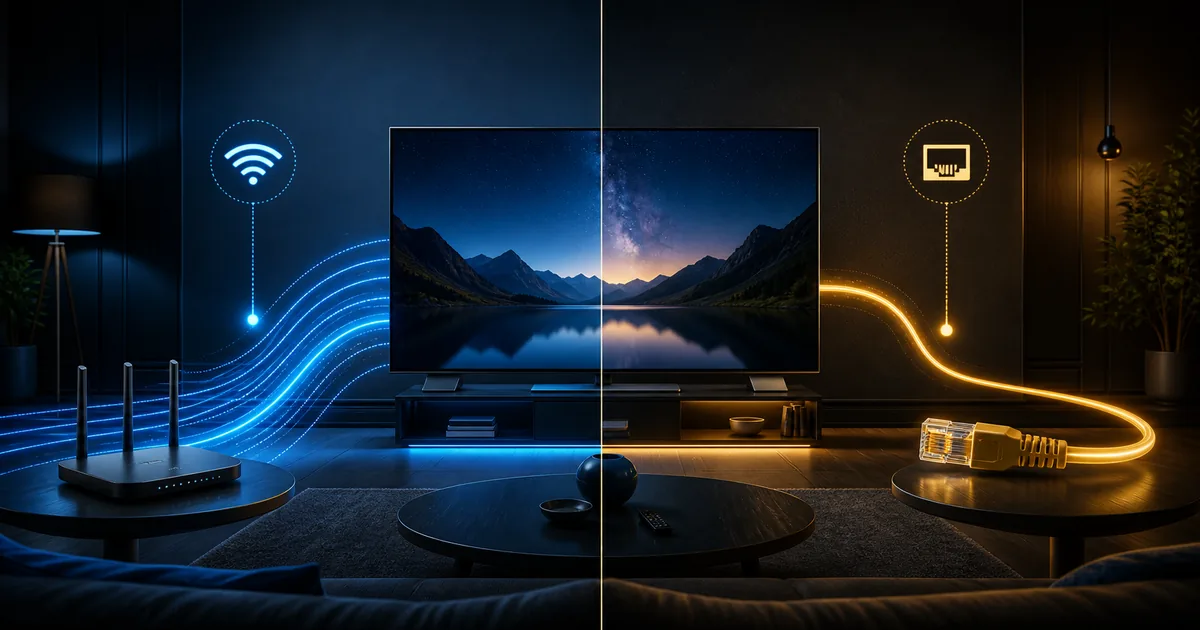
Compare Wi-Fi bands
Try 5 GHz when the television is near the router and 2.4 GHz when range and walls are the main challenge. The fastest band in one room may be the least stable in another. Keep the connection that performs consistently, not the one that produces the highest single test.
Test Ethernet
If possible, connect a temporary Ethernet cable. Keep it away from walkways during the test. If buffering stops, investigate Wi-Fi placement or interference. If buffering continues exactly the same way, focus on the internet route, player, device and affected content.
Ethernet is a diagnostic tool as well as a permanent option. It does not guarantee perfect playback and cannot correct a source problem.
Check household congestion
Large downloads, cloud backups, security-camera uploads, video meetings and another high-quality stream can compete for capacity. Test once with normal activity and once with heavy downloads paused. If the difference is clear, schedule large updates or improve the router’s traffic management using its official documentation.
Do not disable network security, open unknown ports or use instructions that claim to bypass provider controls. Safe troubleshooting stays within normal device, router and application settings.
The internet speed for 4K HDR guide explains why a high peak speed is not the same as stable delivery.
Lower output quality temporarily
When the player supports a quality choice, reduce it one step and test again. If playback stabilizes, the current connection may not sustain the higher profile at that moment. This is a diagnosis, not a permanent requirement. Improve the connection and test the higher quality later.
Automatic quality can protect the viewing experience by adapting to changing conditions. A lower but stable picture is often more useful during a live event than repeated pauses at the maximum setting.
Contact support with useful diagnostic information
Before sending a message, collect:
- Device brand and exact model.
- Operating-system version when available.
- Player name and version.
- Wi-Fi band or Ethernet.
- Approximate speed measured from the viewing room.
- Time and time zone of the issue.
- Whether one item or all content is affected.
- Whether on-demand playback also pauses.
- Any visible error message.
- Steps already completed.
Do not send passwords, complete activation URLs, payment details or private access codes in a screenshot. Crop or cover them first.
A strong support message might say:
Smart TV model ABC, connected on 5 GHz Wi-Fi, approximately 48 Mbps in the room. Live playback pauses after 8 p.m. on several items, while on-demand playback is stable. I restarted the device, cleared only the cache and tested Ethernet, which improved the result.
That description lets support focus on the remaining variables. Compare it with “buffering, fix it,” which provides no starting point.
Use the contact page for a detailed request or the support button in the trial section when you want a quick setup check.
A practical order of operations
- Confirm whether the issue affects one item or everything.
- Exit and reopen the player.
- Restart the viewing device.
- Close background apps and downloads.
- Check free storage.
- Update the application and operating system.
- Test from the viewing room.
- Compare Wi-Fi bands or Ethernet.
- Lower quality one step as a diagnostic test.
- Send the recorded details to support.
If the problem disappears after one step, keep the setup stable and observe it during normal viewing. Avoid continuing to change settings that are already working.
Reduce avoidable interruptions, then test again
Buffering is a symptom, not one single fault. The fastest solution comes from identifying where the symptom follows: a source, time, device, player or connection. Safe diagnosis protects your settings and gives support a clear picture.
Use the 24-hour trial to test during the hours when you normally watch live sports or television. Quality depends on the internet connection, device, application, configuration and content availability. A properly configured setup can reduce avoidable buffering, but changing network conditions can still affect playback.