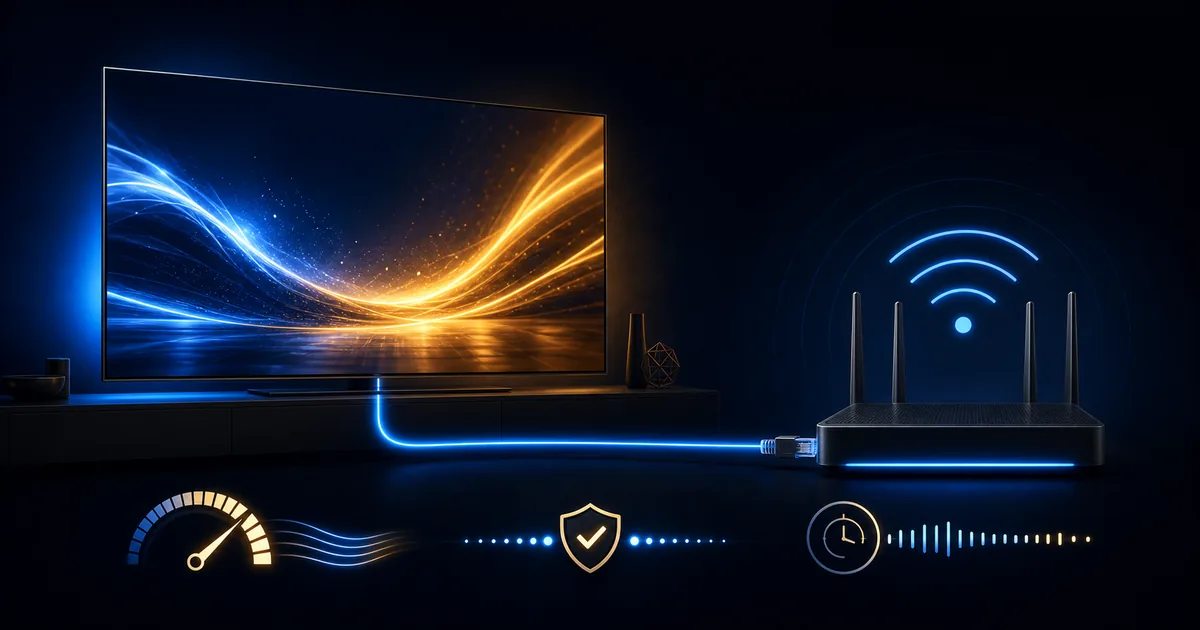
A speed-test number is useful, but it is not a complete description of streaming quality. Smooth 4K HDR playback also depends on how consistently the connection delivers data, how the router reaches the viewing device, what other people are doing online, and whether the screen and player support the selected format.
This is why two homes with the same advertised internet speed can have different results. One may have a short Ethernet link to the television. The other may use Wi-Fi through several walls while multiple devices upload files. The plan speed is only the first layer.
Download speed is only one part of the connection
Download speed describes how much data can arrive per second. Streaming needs enough sustained download capacity for the chosen quality. A brief speed test may show a high peak even when the connection varies several minutes later.
Stability describes whether data continues arriving at a reasonably consistent rate. Sudden drops can empty the player buffer and cause a pause, especially during live playback.
Latency is the time a small request takes to travel and return. It is more critical for video calls and gaming than for buffered video, but extreme or changing latency can indicate congestion or wireless problems.
Packet loss happens when some network data does not arrive correctly. A connection can report a good headline speed and still feel unreliable when packets are repeatedly lost or retransmitted.
The viewing device adds another layer. It must decode the video format, output the required resolution and dynamic range, and keep the player responsive. Official video-platform guidance notes that high-quality formats may be unavailable on devices that do not support the required compression technology, even when the connection is fast. See this official playback-quality explanation for an example.
The source matters too. A 4K television cannot create native 4K detail when the available source is 1080p. “Up to 4K HDR where available” means the source, device, application, plan and connection must all support that result.
Use speed ranges as guidance, not guarantees
There is no single universal requirement for every live or on-demand stream because compression, frame rate and source delivery differ. The following ranges are conservative planning guidance for one active stream, not a performance promise:
| Viewing target | Practical starting range | What to check |
|---|---|---|
| Standard definition | About 3–5 Mbps | Useful on small screens or a constrained connection. |
| 720p HD | About 5–10 Mbps | Leave room for household traffic and Wi-Fi variation. |
| 1080p Full HD | About 10–20 Mbps | Stable delivery matters more than a brief high peak. |
| 4K or 4K HDR | About 25 Mbps or more | Confirm device support, source availability and connection headroom. |
Some major services publish lower minimum recommendations; for example, official guidance for UHD may begin around 15 Mbps on a stable connection. See this official recommended-speed table. Planning with more headroom is sensible because your connection may also serve phones, game downloads, video calls, cameras and cloud backups. It also accounts for Wi-Fi not delivering the full speed measured beside the router.
These ranges do not mean a 24 Mbps connection always fails at 4K or that a 100 Mbps connection always succeeds. A stable, lightly used 25 Mbps line may perform better than an unstable 200 Mbps Wi-Fi link. Test the actual application and device during the time you normally watch.
Household traffic changes the available capacity
An internet plan is shared. If one person starts a large game update, another joins a video call and a phone uploads photos, the television receives a smaller and less predictable share. Router features may manage traffic, but they cannot create bandwidth that the internet plan does not provide.
Repeat the test with normal household use. Do not ask everyone to disconnect only to produce a perfect trial result. The useful result is the one that represents a regular evening.
Peak periods can affect the route outside the home as well as local Wi-Fi. Test at two or three times rather than treating one measurement as final.
Improve Wi-Fi quality before increasing the plan
The router should be in an open, elevated location where possible—not inside a closed cabinet, behind a television or on the floor. Thick walls, metal, large appliances and neighboring networks can reduce or disturb the signal.
2.4 GHz versus 5 GHz
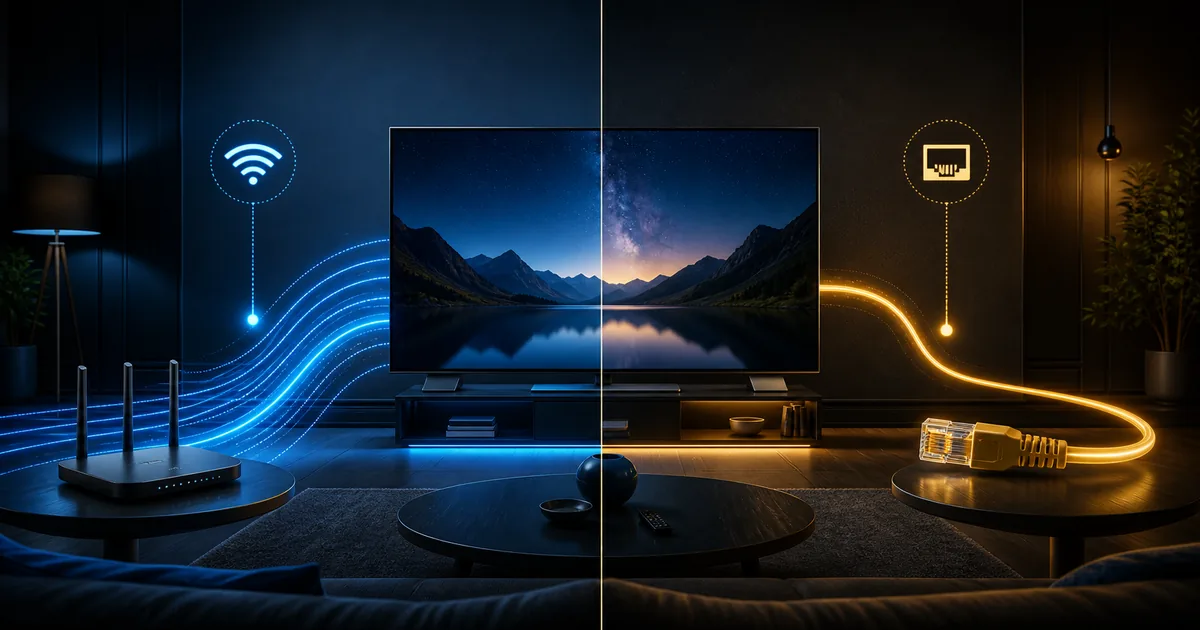
The 2.4 GHz band generally travels farther and passes through obstacles more effectively, but it has less capacity and often more interference. The 5 GHz band usually offers higher speed at shorter range but weakens more quickly through walls.
There is no rule that one band is always correct. At the television:
- Test 5 GHz while normal household devices are connected.
- Repeat on 2.4 GHz.
- Watch for consistency, not only the highest speed.
- Keep the band that remains stable for several minutes.
A network name that combines both bands can choose automatically. That is convenient, but it can make diagnosis harder if the device switches bands. Your router documentation may explain how to see the current connection without changing security settings.
Router distance and placement
Move the router or a mesh node a small distance and retest before buying a faster plan. A change of one room, one shelf or one obstruction can matter. Mesh systems can improve coverage, but nodes must still have a strong path to one another. Adding a node in a dead zone does not automatically create a strong backhaul.
Ethernet is the most direct comparison. Run a temporary cable safely for a short test. If playback becomes stable, focus on wireless coverage. If the same problem continues, look at the application, device, source and wider internet connection.
Read the Wi-Fi or Ethernet decision guide before changing equipment.
Test the real setup, not the best possible setup
Use this practical process:
- Restart the router only when it is safe to interrupt the household connection.
- Restart the television or streaming device.
- Connect the device the way you plan to use it.
- Pause large downloads and note which household activities are active.
- Run more than one speed test from the viewing device when possible.
- Test one live item and one on-demand item.
- Repeat during normal evening usage.
- Try Ethernet or the other Wi-Fi band if the result is inconsistent.
- Record the time, device, player, connection type and visible symptom.
A phone test beside the router cannot describe the signal behind a television in another room. Use the television’s built-in network test when available, or test a phone from the same location as a rough comparison.
How much headroom is enough?
Aim for enough capacity that one brief household activity does not consume everything the stream needs. If the practical target is one 4K stream and other devices are active, a result that only just reaches a published minimum leaves little room for variation. More headroom helps, but it still does not fix weak Wi-Fi, a slow device or unavailable source quality.
If the picture drops to a lower resolution, check whether the player is using an automatic quality setting. Automatic selection may protect playback by reducing quality when the connection changes. This can be preferable to repeated pauses. After improving the connection, test a higher setting again.
The buffering troubleshooting guide provides the next steps if a stable speed test does not match playback behavior.
Make a decision using evidence from your home
Do not buy a faster plan because one video paused once. First identify whether the issue follows the Wi-Fi location, the device, the application, one item, or the entire connection. Likewise, do not assume a high speed-test result proves that every 4K HDR source will play perfectly.
Use the setup check, then request the 24-hour trial and test under normal conditions. Quality depends on the connection, home network, device, application, configuration and content availability. A careful test shows which part deserves attention and prevents unnecessary changes.