Choosing an Internet TV setup should begin with the device you already use, not with a list of hardware to buy. A recent television may already have everything needed for a comfortable setup. An older screen may work better with a compact external device. A phone, tablet or computer can also be the most practical starting point when you want to test before changing the living-room system.
The useful question is not “Which device is best for everyone?” It is “Which setup gives this household a compatible application, a stable connection and controls that feel easy every day?” This guide helps you answer that question in a structured way.
Start with the screen you already own
Write down the exact brand and model of the main device. On a television, the model number is usually available in Settings, Support, About, or on a label at the back. On an external streaming device, note the model generation as well as the operating system version.
Then check four basic points:
- Application availability. Can the device install a supported player from its official application store?
- Responsiveness. Does the menu open and move smoothly, or does the device often freeze?
- Storage. Is there enough free space for the player and its temporary files?
- Network access. Can the device use a strong Wi-Fi signal or an Ethernet connection?
If all four answers are positive, test that device first. If one or more answers are negative, an external device may give you a cleaner path without replacing the television.
Device age matters, but age alone is not a reason to replace something. Some older televisions remain responsive and support a suitable application. Some newer budget models have limited storage. Judge the actual behavior of the device. If opening settings, switching apps and returning to the home screen already feels slow, live navigation may also feel slow.
You can use the 8KTV+ device compatibility check to organize these details before you request access.
Compare the main device paths
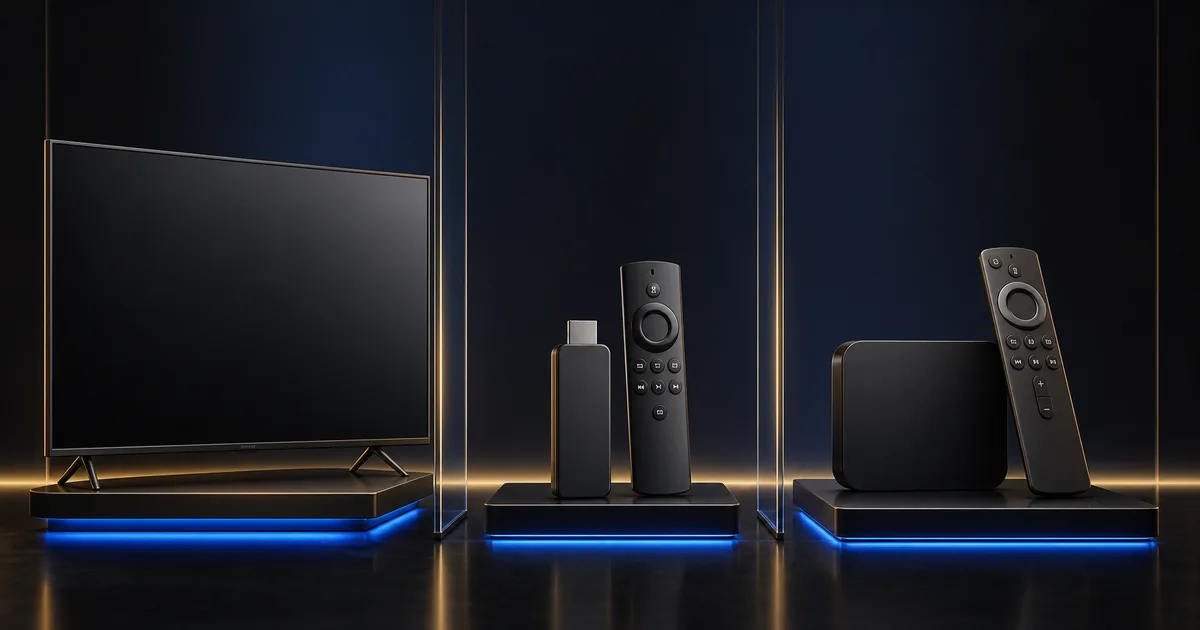
Smart TV
A built-in Smart TV application is often the simplest setup. It uses the television’s normal remote, needs no extra HDMI input and keeps the number of boxes and cables low. It suits viewers who want one screen in one room and prefer a familiar home menu.
The trade-off is that app stores vary between television systems, regions and model years. Storage can be limited, and older processors may make large menus feel slow. Before choosing this route, open the official store, confirm the supported application, update the television software and remove unused apps if storage is nearly full.
For model-specific steps, open the Smart TV setup tutorial.
Android TV or a compatible TV box
An Android-based television or external box can offer broad player choice and flexible settings. It is useful when the built-in television store lacks the required application or when an older television needs a faster interface.
Quality varies widely among external boxes. Check that the device receives legitimate software updates, has enough storage and can install applications from an official source. Avoid unofficial applications or unknown download pages. A familiar operating system is helpful, but it does not make every box equally capable.
Fire TV
A compact Fire TV device is easy to move and can refresh the app experience of a television with an HDMI input. It may suit a bedroom screen, a second home or a frequent traveler who is allowed to connect personal hardware.
Confirm that you have access to power, a suitable HDMI port and reliable Wi-Fi. If the device has little free storage, remove unused applications before setup. When traveling, use only networks you trust and never leave saved activation details on equipment you do not control.
Apple TV
Apple TV can be a clean choice for households already comfortable with Apple devices and account management. The remote experience, app availability and network options should still be checked before the trial. Do not assume that an application available on a phone is automatically available on the television device.
Phones and tablets
Mobile devices are useful for a first compatibility test and occasional viewing. They let you check the player, account details, audio and subtitle controls without changing the television. A mobile screen is not always representative of living-room performance: it may use a different Wi-Fi band, a newer processor and a different display resolution.
Test with the same home network you normally use. Avoid entering private activation details on a borrowed phone or public device.
Windows and Mac computers
A laptop can be practical for a desk, travel or troubleshooting. It also makes it easier to compare wired and wireless connections when the computer has an Ethernet port or adapter. Keep the operating system and supported player updated, and close heavy downloads or cloud backups during the test.
Computers have more background processes than dedicated TV devices. If playback is inconsistent, check system load and browser or application support before blaming the connection.
Check connection, age and storage together
A capable device can still struggle on a weak wireless link. Before changing hardware, test the television near the router if practical, or temporarily connect Ethernet. If performance improves, the main problem is probably coverage or interference rather than processing power.
Wi-Fi is convenient when the signal is strong. Ethernet usually removes radio interference and gives a more repeatable connection. Neither option changes the speed delivered by the internet provider, and neither can repair a problem with the content source or application. The Wi-Fi versus Ethernet guide explains the trade-offs in detail.
Free storage also affects app stability. Operating systems need working space for updates, cache and temporary files. If a device reports low storage:
- Remove applications you no longer use.
- Delete old downloads through the correct application.
- Restart after cleaning storage.
- Avoid “cleaner” applications from unknown publishers.
- Clear only the player cache at first, not all app data.
Clearing app data may remove saved settings and access information. Before doing it, make sure you can recover legitimate account details securely.
An external streaming device becomes useful when the built-in system has no supported player, no longer receives needed updates, lacks storage, or remains slow after routine maintenance. It is not automatically necessary for a recent, responsive television.
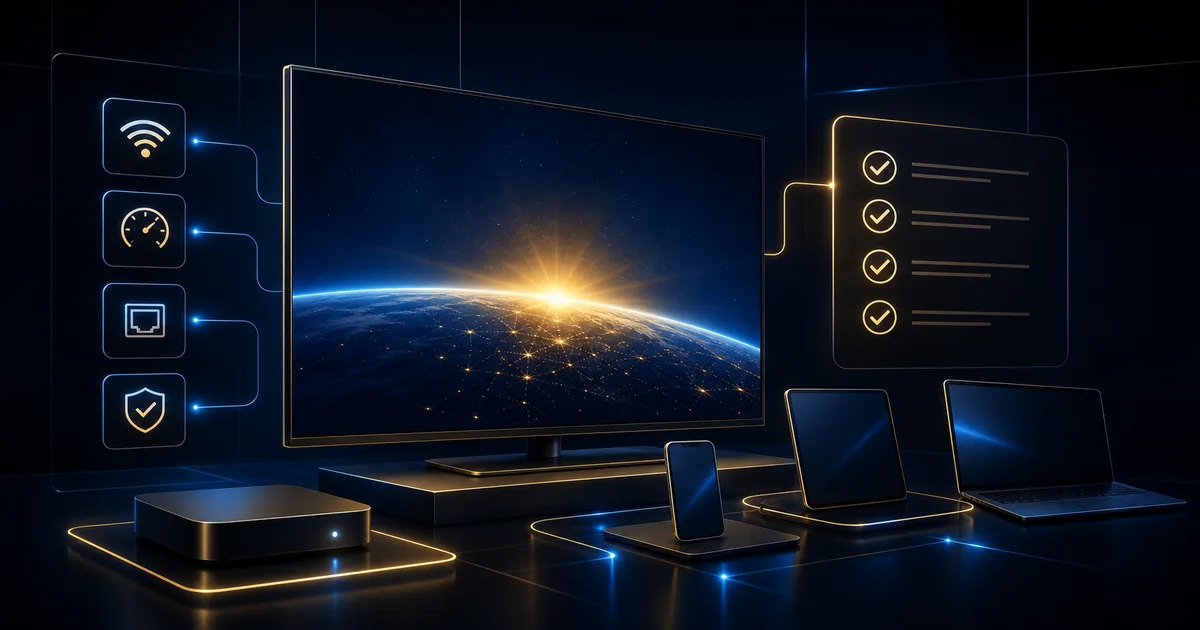
Use this setup checklist
- Record the exact device model and operating system version.
- Confirm that a supported player exists in the official app store.
- Install pending device and application updates.
- Check available storage and remove unused applications safely.
- Test the Wi-Fi signal in the viewing room.
- Try Ethernet temporarily when stability is uncertain.
- Confirm that the remote, audio and subtitle controls are easy to use.
- Test one live item and one on-demand item during normal viewing hours.
- Note whether a problem affects one item or the entire application.
- Keep access details private and use only official application sources.
Use the 24-hour trial request after completing the first six checks. A trial is most informative when you test the actual screen, application and connection you plan to keep. Picture quality may differ between devices because display capability, player support and source availability are not identical.
If you contact support, send the device model, player name, Wi-Fi or Ethernet choice, approximate download speed and the result of your test. A clear description such as “live playback pauses on Wi-Fi at 8 p.m., while on-demand playback is stable” is much more useful than “it does not work.”
Choose for daily comfort, not specifications alone
The best setup is the one the household can operate confidently. A technically powerful box is not helpful if the remote is confusing. A built-in app is not simple if the television freezes each time the menu opens. A mobile test is useful, but it does not replace testing the main screen.
Start with existing equipment, remove the obvious obstacles and test under real conditions. If the current device is compatible and responsive, keep the setup simple. If it is limited, choose external hardware that solves a specific problem rather than buying features you will not use.
Quality depends on the internet connection, home network, device, application, configuration and content availability. The goal of the setup check is to bring those parts into alignment, not to promise one result for every home.