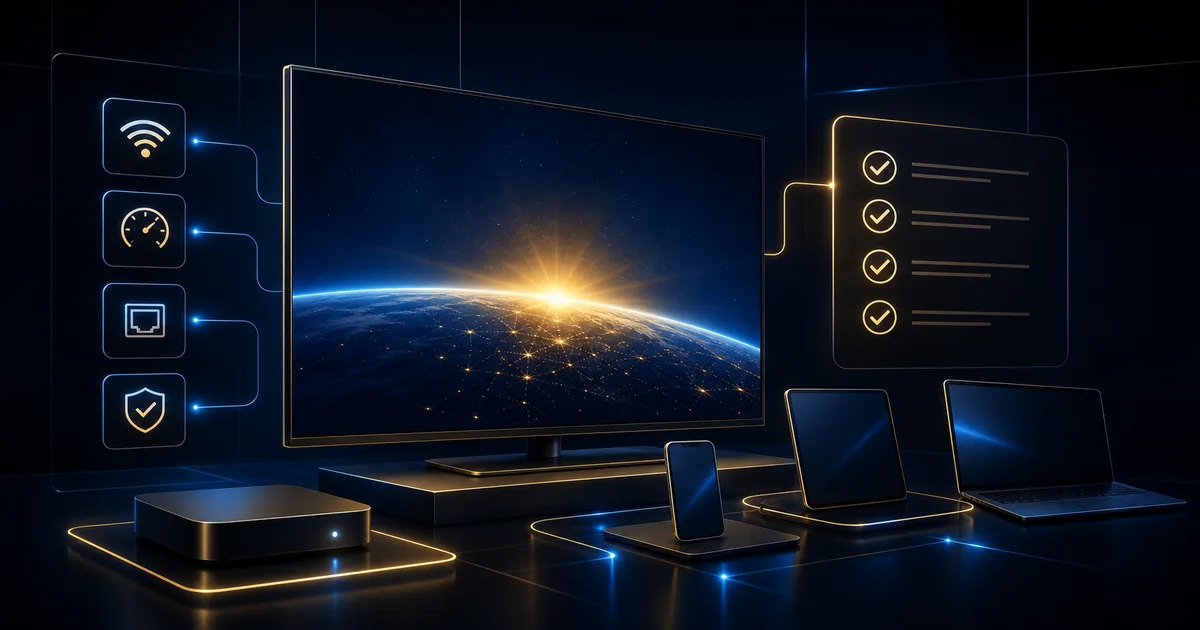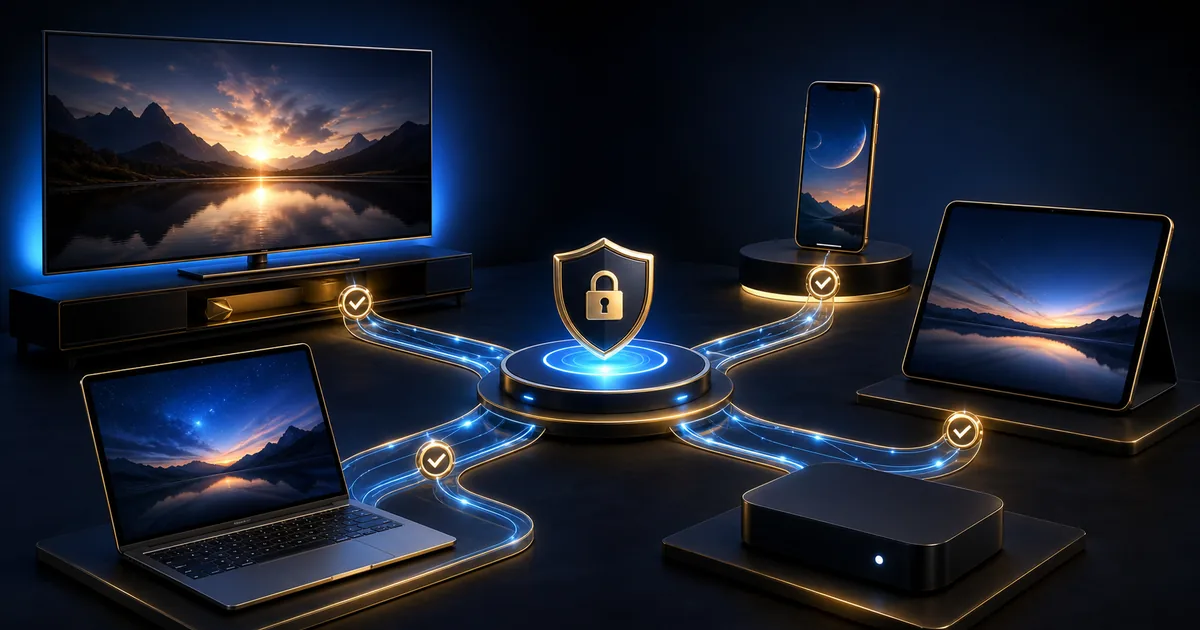
Multi-device support lets you prepare an Internet TV setup for more than one type of screen. It does not automatically mean that every device can play at the same time. Installation, authorized devices and simultaneous connections are separate plan rules.
Before adding the account to every screen in the home, decide which devices are actually useful, confirm the selected plan’s limits and protect the activation information.
Plan the device list before installing
Create three groups:
- Primary device: the television or box used most often.
- Secondary devices: a phone, tablet or laptop used occasionally.
- Devices to remove: old, sold, shared or no longer controlled by the household.
Begin with the primary device and complete a stable setup. This gives you a known working reference. If a second device has a problem, you can compare the application, network and operating system instead of wondering whether the account itself is active.
For each device, record:
- Exact model.
- Operating system.
- Supported player name.
- Wi-Fi or Ethernet.
- Main user.
- Whether private details remain saved.
Do not include passwords or complete activation URLs in this list. Store those in a secure password manager or another protected location.
Use the device compatibility check for the primary device, then open the matching setup tutorial.
Smart TV
A Smart TV is often the main household device. Install through the official store, keep the home screen simple and verify that the remote can reach the player easily.
Phone and tablet
Mobile devices are useful for personal or temporary viewing. Protect them with a screen lock. Avoid keeping activation details in screenshots, chat history or unprotected notes.
Mobile data can consume a significant allowance at higher quality. Use an appropriate quality setting and understand the mobile plan before watching away from Wi-Fi.
Laptop
A laptop offers flexible wired and wireless testing. Use a supported application or browser path, keep the operating system updated and close heavy downloads. Log out before lending the computer or using a shared profile.
TV box
An external box can provide a consistent interface on an older television. Give it a clear device name in your home network or account settings where supported. Avoid generic unofficial boxes that require unknown software sources.
Install and organize one device at a time
Complete these steps on the first device:
- Install the supported application from the official store.
- Enter the legitimate details privately.
- Test one live and one on-demand item.
- Check audio, subtitles and remote controls.
- Restart the device and confirm the app returns.
Only then add the second device. This order avoids duplicating a configuration mistake.
Use the same application when practical, but do not force it when operating systems differ. A player that is excellent on a Smart TV may not exist on a laptop. The important point is supported, official software—not identical branding.
Organize the home screen so the correct application is easy to find. Remove unused shortcuts rather than uninstalling essential system components. On a family television, place the player where adults can open it without searching through installation or account menus.
Device switching
When moving from a phone to the television, stop playback normally before starting another device. This reduces confusion about simultaneous sessions. If the plan permits only a particular number of active streams, opening another may interrupt the first.
Ask support to confirm the rule for the plan you are considering. Do not assume “multi-device support” equals unlimited concurrent use.
Protect activation and account details
Activation information should be treated like a password. Anyone with complete details may be able to use the account or disrupt authorized devices.
- Do not post details in public groups or comments.
- Hide them in screenshots sent for troubleshooting.
- Do not save them on borrowed televisions.
- Use a private message channel when support specifically needs account identification.
- Never send payment-card information through ordinary support chat.
- Remove details before selling or returning a device.
If you lose control of a device, contact support and explain what happened. A credential change or session reset may be appropriate. Do not wait for unexplained device-limit errors.
Logging out from unused devices
Use the player’s logout or remove-account option when available. Then uninstall it and clear saved app data through system settings. On a television being sold, complete the manufacturer’s reset process after backing up anything you own.
Removing an icon from the home screen may not remove saved details. Confirm the application data has been cleared.
Avoid public sharing
Account sharing beyond the permitted users can create security problems, overload plan limits and make support diagnosis difficult. Keep use within the selected plan and authorized household context. If your needs change, ask support about an appropriate option.
Check household capacity and plan limits
Two simultaneous streams need more network capacity than one. The exact amount depends on resolution, compression and content. Add other household traffic—calls, downloads, games and backups—when deciding whether the connection has enough headroom.
A phone may use a lower quality automatically while a television targets a higher resolution. Do not multiply one fixed number by the device count and treat it as guaranteed. Test representative devices under normal conditions.
The 4K HDR internet speed guide explains how stability and household congestion affect the result.
One device works and another does not
If the primary television works but a tablet does not, compare:
- Player version and official support.
- Wi-Fi band and signal.
- Operating-system version.
- Date and time settings.
- Available storage.
- Whether the details were entered accurately.
- Whether the plan has reached a device or session limit.
Do not reset the working television while diagnosing the tablet. Preserve the known-good reference.
Responsible use when traveling
Use devices and networks you control or are authorized to access. Public and hotel networks can be unstable or isolated. Do not bypass sign-in, geographic, provider or security controls. Log out, forget the network and clear any local details when the device will not remain under your control.
Build a simple multi-device routine
- Choose one primary device and make it stable first.
- Confirm supported applications for each secondary device.
- Ask support about simultaneous playback for the selected plan.
- Add one device at a time.
- Keep activation details private and protected.
- Stop playback normally before switching when limits are uncertain.
- Log out and clear data on unused or transferred devices.
- Test the household connection with realistic simultaneous use.
Request the 24-hour trial with your primary device listed clearly. If more than one device is essential, explain that to support before the test so the permitted setup can be confirmed.
Multi-device use should make viewing more convenient, not make account control confusing. Keep the device list short, protect access details and confirm plan rules. Quality depends on each device, its application and connection, as well as content availability and the capacity shared across the home.