Television labels combine several different ideas. “4K” describes resolution. “HDR” describes how compatible video can represent brightness, contrast and color. “8K” describes a higher resolution again. A screen, player and video source must support the same features before you see the intended result.
Understanding the signal chain prevents two common mistakes: expecting an 8K television to turn every source into native 8K, and assuming that every 4K video includes HDR. The terms are related, but they are not interchangeable.
Resolution basics: 1080p, 4K UHD and 8K
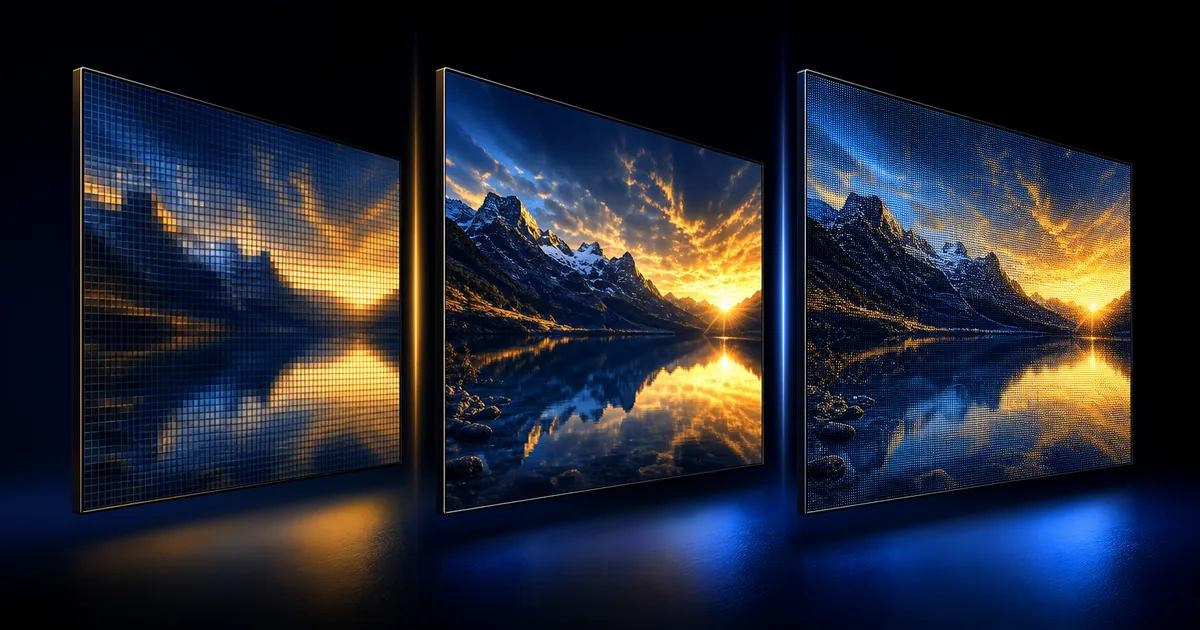
Resolution describes the number of pixels used to form the image. More source pixels can preserve more fine detail when the screen is large enough and the viewing distance makes that detail visible.
| Common label | Typical consumer resolution | What it describes |
|---|---|---|
| 1080p / Full HD | 1920 × 1080 | A widely supported high-definition format. |
| 4K UHD | 3840 × 2160 | Four times the pixel count of 1080p, when the source is native 4K. |
| 8K UHD | 7680 × 4320 | Four times the pixel count of 4K UHD, with limited native consumer source availability. |
“Four times” here refers to total pixel count, not four times the visible sharpness in every room. Screen size, viewing distance, eyesight, source quality, compression and display processing all affect what you notice.
A 4K television can display 1080p video by scaling it to the panel. Modern displays may make scaling look clean, but they cannot recreate all the detail that a native 4K camera and source would contain. The same principle applies when an 8K television scales 4K material.
Progressive video
The “p” in 1080p means progressive scan: each frame is drawn as a full image. Television interfaces often show the resolution without the letter. Frame rate is a separate measurement, such as 24, 30, 50 or 60 frames per second. Live sports may benefit from a higher frame rate because fast motion becomes easier to follow, but the source, player and screen must all support it.
Source quality still leads the chain
If the original video was captured or distributed at a lower resolution, choosing a higher output setting cannot create native source detail. Official video guidance makes the same point: high-resolution playback depends on the quality originally provided and on device support. This official 4K explanation gives a useful example.
HDR changes dynamic range, not pixel count
High Dynamic Range, or HDR, is designed to preserve a broader range between dark and bright parts of a compatible image, together with a compatible color and brightness system. A highlight such as sunlight reflecting from glass can appear more distinct while shadow detail remains visible.
HDR does not automatically mean the picture will be brighter everywhere. A well-mastered HDR source uses brightness range selectively. Results vary between displays because televisions have different panel capabilities, peak brightness, local dimming, tone mapping and settings.
4K HDR means that both features are present: 4K resolution and a compatible HDR format. A source may be:
- 1080p without HDR.
- 1080p with HDR in some workflows.
- 4K without HDR.
- 4K with HDR.
The television information panel may show the input resolution and an HDR indicator. If it does not, check the device output settings and the content information without forcing a mode the screen cannot support.
Different HDR formats exist. Compatibility should be checked across the source, application, player, HDMI path and television. This guide does not assume that one format is available for every item.
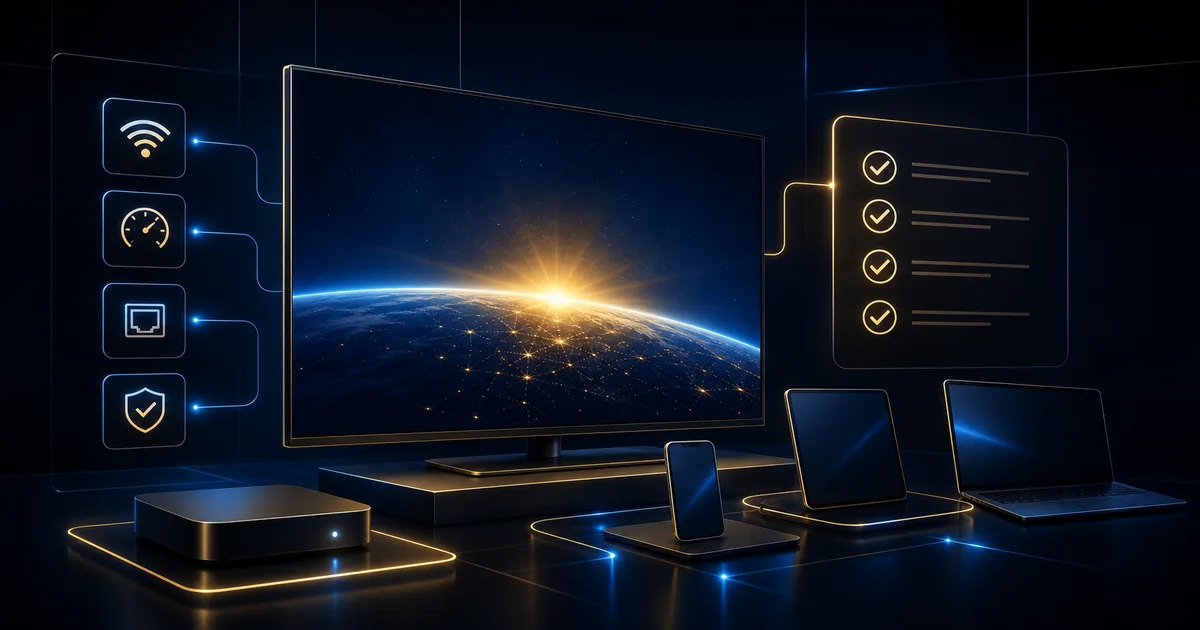
Check the complete signal chain
Picture quality is limited by the first incompatible part in the chain.
The display
Confirm the native panel resolution and supported HDR formats. Some televisions accept a 4K signal but have settings that must be enabled for a particular HDMI input. Use the manufacturer’s official instructions rather than copying settings from a different model.
Picture presets affect appearance. A highly vivid shop mode may exaggerate brightness and color. A cinema or filmmaker-oriented mode may look more natural. The right choice is personal, but test with the same source when comparing.
The streaming device
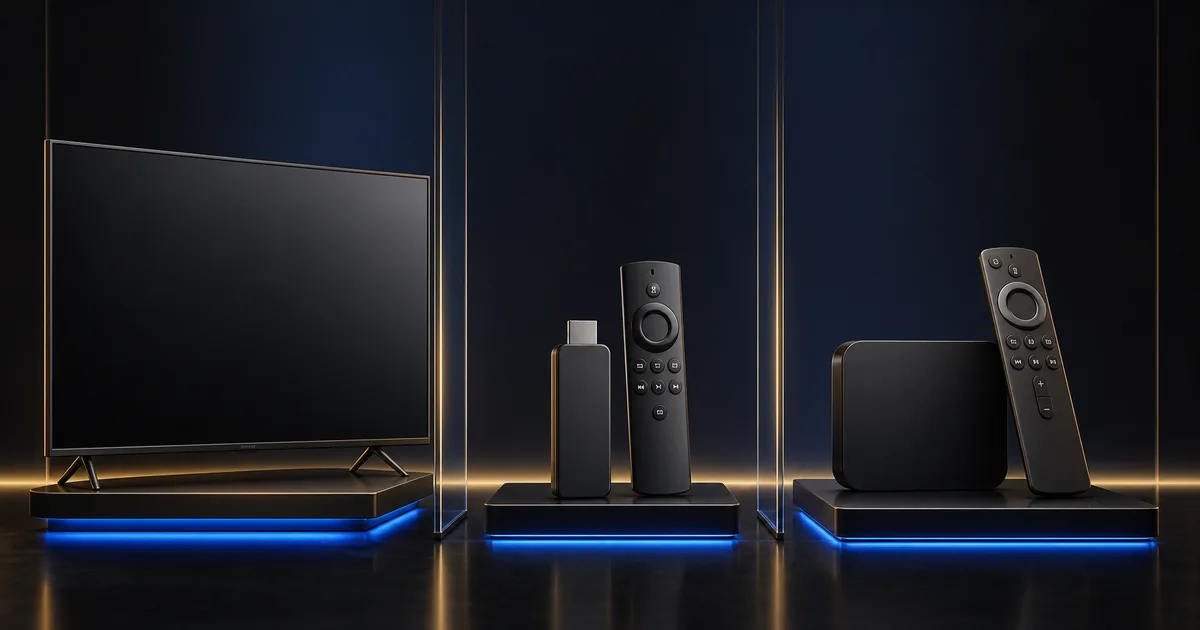
An external device must support the required resolution, frame rate, HDR format and application. Set output to an automatic or compatible mode first. Forcing 4K HDR on every screen can cause a blank picture or incorrect colors when part of the chain is incompatible.
Built-in Smart TV applications avoid an external HDMI link, but the television processor and application still need to support the source format.
The HDMI cable and input
External devices need a cable and input rated for the intended mode. Cable labels describe tested capability; price alone does not. HDMI Licensing guidance explains that certified cable categories support different bandwidth and feature levels. See the official HDMI cable overview.
Use a short, undamaged cable with the appropriate certification. If 4K works but HDR or a higher frame rate does not, test another compatible input and cable before replacing the device.
The internet connection
Higher-quality video generally needs more sustained data. Compression and source encoding vary, so one exact speed cannot cover every platform. Use the ranges in the 4K HDR internet speed guide, leave room for household traffic and test on the actual device.
A high connection speed does not add HDR to a source or make an incompatible display support it. It only helps deliver available data.
The application and plan
Application versions, device certification, account settings and service plans can affect available quality. Some players show a format badge before playback; others adapt automatically. Confirm “up to 4K HDR where available” during the trial instead of assuming every item uses the maximum.
What the 8KTV+ brand name means
8KTV+ is the brand name. It must not be interpreted as a guarantee that every item—or any particular item—is delivered in native 8K. The service wording is up to 4K HDR where available because actual delivery depends on the source, device, player, plan, configuration and connection.
An 8K television may process and scale lower-resolution video to its native panel. That process fills the screen and may improve edges or noise, but it does not convert the source into native 8K production.
This distinction matters when choosing equipment. Buying an 8K screen solely because of the brand name would be the wrong decision. Choose the television for its panel quality, size, operating system, application support, connection inputs and price—not an assumption about the source library.
What should you prioritize?
For most viewers, a stable 1080p or 4K experience on a well-configured device is more valuable than forcing the highest label. Prioritize:
- A reliable application on a supported device.
- A stable connection with enough headroom.
- A screen size and viewing distance that suit the room.
- Compatible HDR support if HDR matters to you.
- Correct output settings and cable capability.
- Source availability during the content you actually watch.
Use the device setup guide to choose the hardware path, then request the 24-hour trial to check picture, sound, subtitles and application behavior on your own screen.
The useful difference is the one you can see consistently
4K increases pixel resolution over 1080p. HDR can improve the representation of highlights, shadows and color on a compatible display. 8K increases resolution again, but an 8K panel does not make every source native 8K.
Treat every label as one part of the complete system. The source must contain the quality, the application must deliver it, the device must decode it, the connection must carry it and the display must reproduce it. When those parts agree, “up to 4K HDR where available” becomes a meaningful capability rather than a marketing promise detached from the setup.