Choosing between 2.4 GHz and 5 GHz Wi-Fi is not about selecting the band with the larger number. The best band is the one that stays stable at the television while the household uses the network normally.
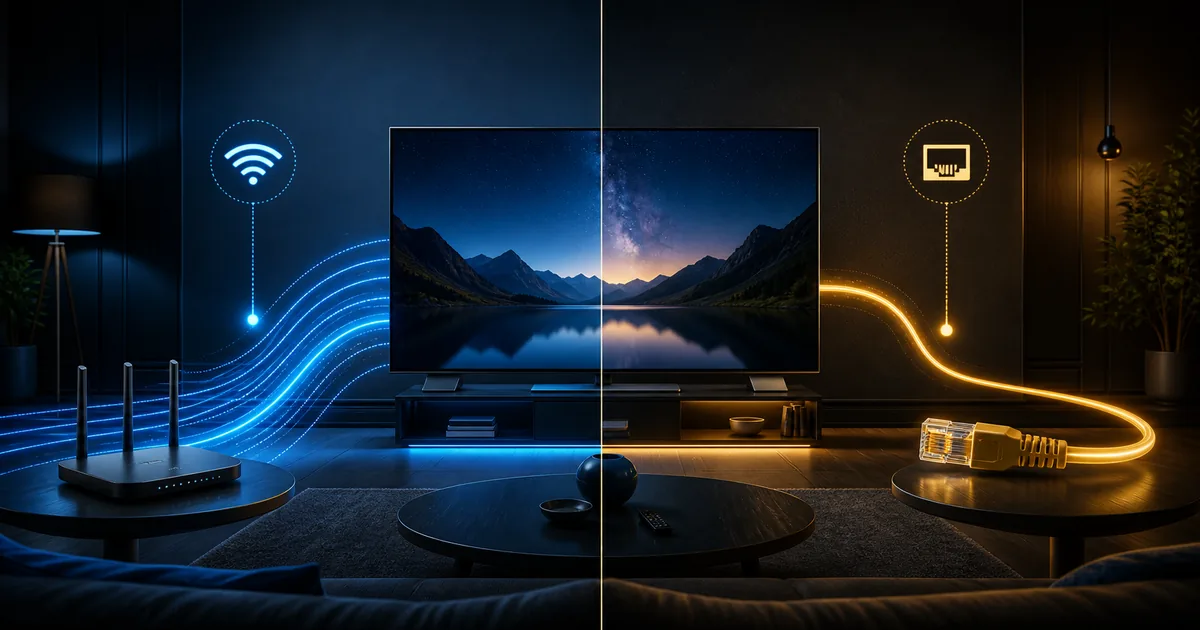
5 GHz generally offers more capacity at shorter range. 2.4 GHz usually reaches farther and passes through walls more effectively, but it shares a busier part of the radio spectrum. This guide shows how to compare them from the actual viewing position.
Understand what each Wi-Fi band changes
The 2.4 GHz band uses lower-frequency radio signals. It normally covers a wider area and can remain usable through more walls. Many routers, older devices, smart-home products and neighboring networks use it, so congestion can be high.
The 5 GHz band provides more channels and often supports higher real-world speeds near the router. Its signal weakens faster with distance and solid obstacles.
Neither band changes the speed purchased from the internet provider. They only change the wireless path between the router and television.
| Factor | 2.4 GHz | 5 GHz |
|---|---|---|
| Typical reach | Longer | Shorter |
| Wall penetration | Usually better | Usually weaker |
| Available capacity | Lower in busy areas | Often higher nearby |
| Interference | Common from many devices | Often lower, but location matters |
| Best starting scenario | Television several rooms away | Television near the router |
These are tendencies, not guarantees. Router design, antenna position, channel conditions and the television radio all affect the result.
Choose according to the viewing room
Same room as the router
Start with 5 GHz. The short distance usually allows a strong signal and more than enough capacity for high-quality playback. Keep the router in the open rather than inside a cabinet or behind the television.
One room away
Test 5 GHz first, then compare 2.4 GHz during normal household use. A single light wall may not cause a problem. Dense walls, metal, mirrors and appliances can change the result.
Several rooms or floors away
2.4 GHz may remain stronger, but a strong signal indicator does not always mean a clean connection. Test sustained playback and latency. If both bands are inconsistent, improve access-point placement or consider a properly positioned mesh node.
Apartment with many neighboring networks
5 GHz often has more channel options, but it can still be congested. Let the router choose channels automatically unless you understand local radio conditions. Recheck after several days because neighboring networks can change channels.
Test from the Smart TV, not beside the router
Run a network test from the television or a phone placed beside it. A test beside the router only measures the easiest location.
Use this routine:
- Connect the television to 2.4 GHz.
- Run two or three tests at different times.
- Watch a known item for at least ten minutes.
- Note startup time, quality changes and interruptions.
- Repeat the same process on 5 GHz.
- Keep the band with the more consistent result.
Do not compare different titles or applications. Keep the source, television and time period as similar as possible.
The internet speed for 4K guide explains why one fast test cannot confirm sustained quality.
Look beyond download speed
Useful signals include:
- Stable download speed
- Low variation between tests
- Responsive application navigation
- Fast playback start
- No repeated quality drops
- Consistent performance during busy hours
A 5 GHz test that peaks higher but drops sharply may feel worse than a steady 2.4 GHz connection.
Improve router and television placement
Keep the router elevated, open and away from thick obstructions. Avoid placing it inside a metal cabinet, on the floor or directly behind a large television.
Small position changes can matter. Moving the router 30 to 60 centimeters away from electronics may improve the radio path.
At the television:
- Avoid hiding a streaming device behind dense metal.
- Use the supplied HDMI extender when the device manufacturer recommends it.
- Keep USB 3 devices and poorly shielded cables away from the Wi-Fi receiver.
- Do not stack the router with other hot electronics.
- Allow ventilation around the router and player.
Do not place the router in a hallway merely because it is central on a floor plan. The real radio path to the viewing room matters more than visual symmetry.
Use mesh Wi-Fi and extenders carefully
A mesh node cannot create a strong connection from a weak signal. Place the node where it still receives a reliable link from the main router while extending coverage toward the television.
If the node sits in the same dead zone as the television, it repeats an already poor connection. Move it halfway toward the router and test again.
Traditional extenders can help with simple coverage gaps, but they may reduce capacity or create confusing network names. Follow the manufacturer's setup guidance and test the final path.
A wired backhaul between mesh nodes is often more consistent, but installation must suit the home. The broader Wi-Fi versus Ethernet comparison explains the trade-offs.
Control household congestion
Streaming shares the internet connection with downloads, game updates, cloud backups, video calls and other televisions. A band can appear unstable when the real limit is the internet connection or router workload.
During a test:
- Pause large downloads.
- Check whether another device is uploading files.
- Restart a router that has not been restarted for a long time.
- Update the router through its official interface.
- Use supported quality-of-service settings only when you understand them.
- Retest during the evening period when problems normally appear.
Do not disable security features or expose router administration to the internet for a speed improvement.
Know when to use Ethernet instead
Try Ethernet when both wireless bands fail to remain stable, when live playback is important or when the television is fixed close to a safe cable route.
Ethernet removes the radio path from the test. If playback becomes stable, focus on Wi-Fi coverage and interference. If the problem remains, inspect the application, device, internet service and source.
Some television Ethernet ports have a lower maximum speed than modern Wi-Fi. They can still be more than sufficient and more consistent for streaming.
Use a known-good cable and avoid loose temporary cables across walkways.
Use this quick band decision
Choose 5 GHz when:
- The television is near the router.
- The signal remains strong through a small number of walls.
- You need more wireless capacity.
- Neighboring 2.4 GHz networks are crowded.
Choose 2.4 GHz when:
- The television is farther away.
- Several walls weaken 5 GHz.
- The lower band remains more consistent in repeated tests.
- The required speed is available without repeated drops.
Improve coverage or use Ethernet when neither band stays stable.
If playback still pauses after choosing the better band, follow the Smart TV buffering guide. Share the device model, router distance, selected band and test results with support rather than sending passwords or activation information.
Record useful details before asking for help
When both bands behave poorly, collect information that separates a Wi-Fi problem from an application or device problem:
- Exact television or player model
- Router model when known
- Approximate router distance
- Number and type of walls
- Band selected
- Results from two or three tests
- Time when the problem occurs
- Whether another device works in the same location
- Whether Ethernet changes the result
Restart the network equipment through its normal controls and note whether the improvement lasts. Do not publish network passwords, activation information, router administration addresses or screenshots containing private account details.
A useful report lets support recommend the next test instead of repeating steps you already completed. The goal is not to make every number as high as possible. It is to build a connection that remains predictable at the television during the hours when you actually watch.